A few minutes in your Android settings can reduce the damage caused by a lost phone, an over-permissioned app or an outdated system. Menu names differ between manufacturers, but these checks are available on most recent Android phones.
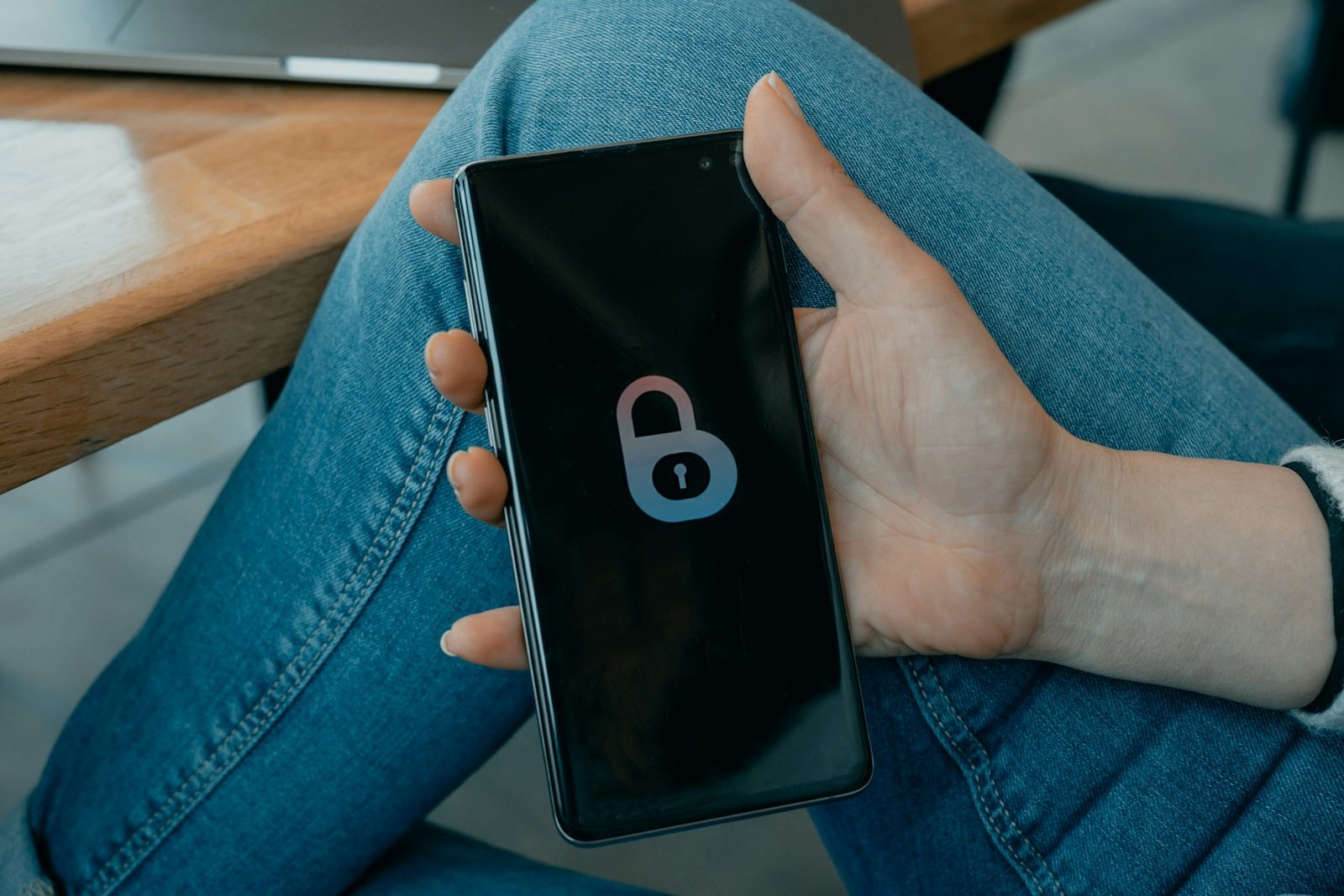
- Use a secure screen lock. Set a long PIN or password that is not reused elsewhere, then add fingerprint or face unlock if you prefer. Biometrics are convenient, but your PIN remains the fallback if the phone restarts or does not recognize you.
- Review app permissions. Open Settings → Security and privacy, or Settings → Privacy → Permission manager, depending on the device. Check which apps can use your location, camera, microphone, contacts and photos. Remove access from apps that do not need it; choose one-time or “while using” access where offered.
- Keep Android and apps updated. Install security updates when available and turn on automatic app updates if that fits your data plan. If your phone no longer receives security patches, treat that as a factor when deciding whether to keep it for banking and sensitive accounts.
- Leave Google Play Protect on. It checks apps for harmful behavior and can warn you about suspicious software. It is not a reason to install apps from unknown websites; use the official store and verify the developer before downloading.
- Set up Google’s device-finding tools. Check that Find Hub is enabled, the phone is signed into the right Google account and location services are available. Learn where the remote secure or erase controls are before you lose the device.
- Hide sensitive lock-screen previews. A one-time code or private message can be exposed while the phone is locked. Set notifications to show content only after unlocking, at least for email, banking and messaging apps.
- Protect account recovery and backups. Use a unique Google Account password and add a passkey or another strong second factor. Confirm that important photos, contacts and device backups are current so remote wiping does not also mean losing your only copy of personal files.
Do the checks periodically, especially after a major Android update or when handing your phone to someone else. Security menus vary by Android version and brand; if a path does not match your screen, search Settings for “permissions,” “updates” or “Find Hub.”
Sources:
Google Android Help, “Learn about Android security and privacy settings” — https://support.google.com/android/answer/13985942
Google Android Help, “Google Play Protect” — https://support.google.com/googleplay/answer/2812853
Image: Tech Daily / Unsplash — https://unsplash.com/ja/写真/人の手に黒と白のスマートフォン-CXklL5ca71w
Products Mentioned & Reviewed